All Apps
/
Time Off Portal

Description:
Employee TimeOff/Leaves Portal
Work on both Community and Enterprise
Works for Both Internal and External/Portal Users
Any User you assigned/give access will have the App/Menu on Portal side
Once you install, you will get the below features:
Main Features
- Employee can view Time Off History
- Employee can view and request new TimeOff requests
- All types request supported Day/half-day/hours
- All types Attachments/Documents option for leaves like Sick, etc
- Employee can view their future upcoming Time Off
- Employee can view past Time Off
Configuration
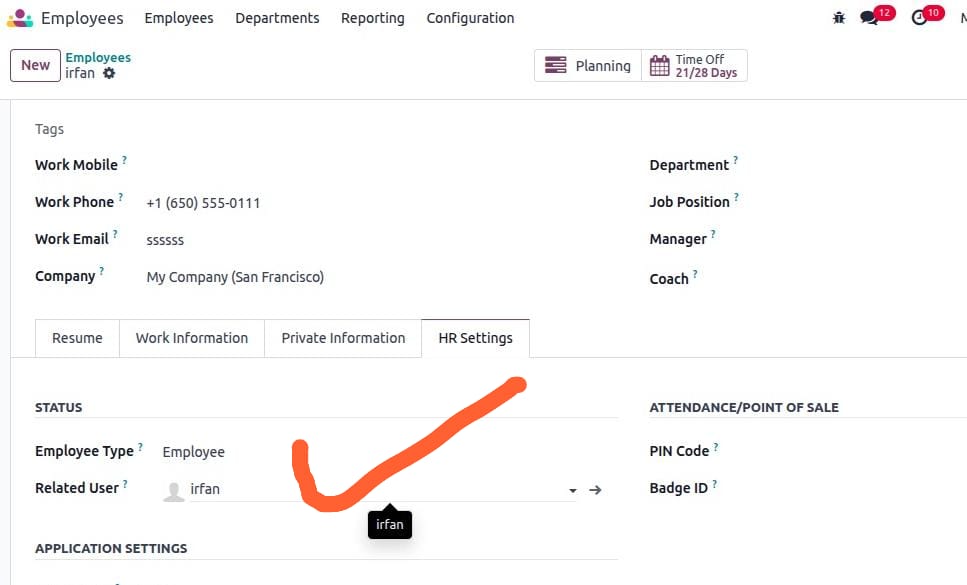
- Make sure the employee is linked with User; check and confirm.
- Go to Employee → open profile → HR Settings tab.
- In the user field, select the User.
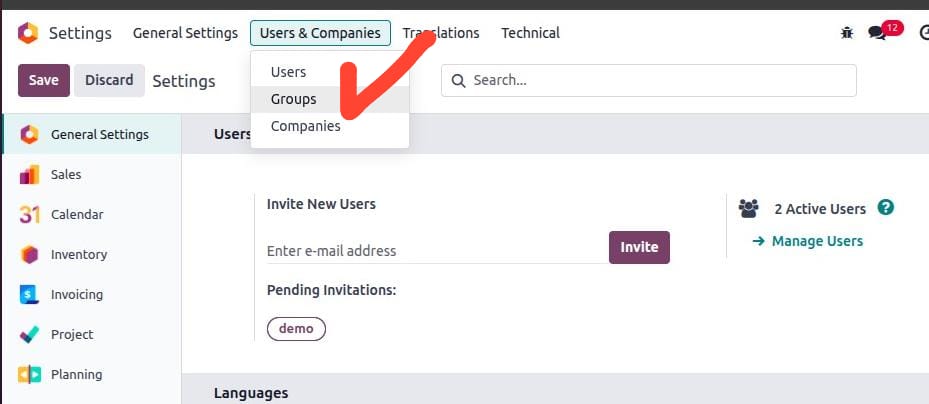
- Next go to Settings → Users & Companies → click on Groups (make sure developer mode is activated).
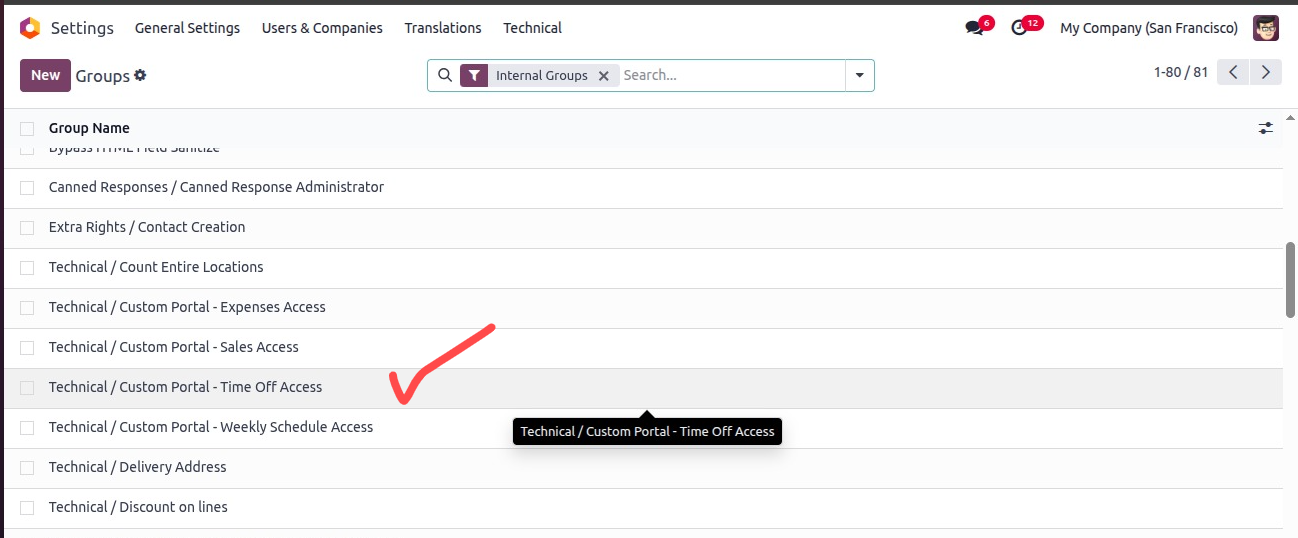
- Search or select the Group ['Custom Portal - Time Off Access'] and click to open.
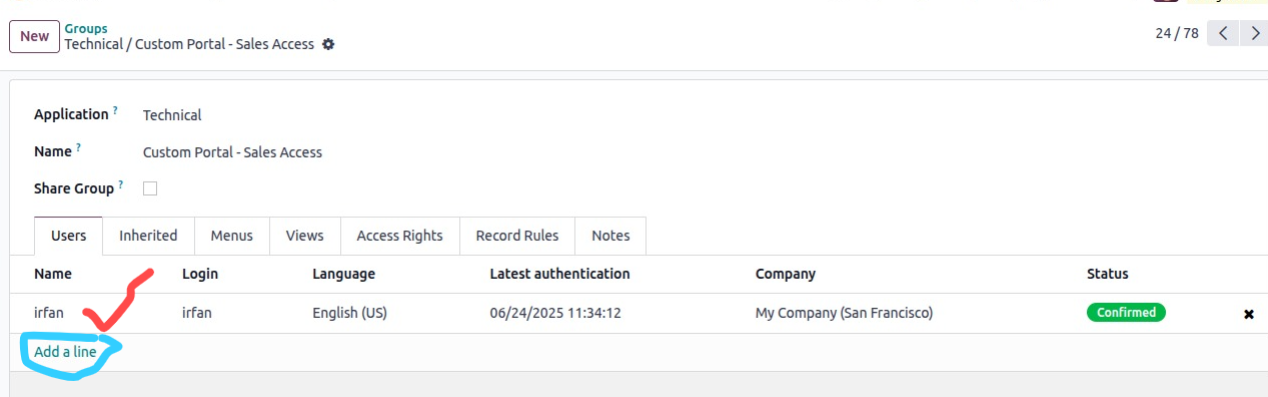
- Add users in the order line.
- Now log in with the User; you will see the App/Menu like below screenshot.
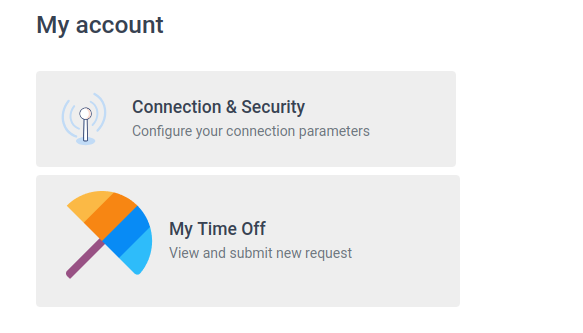
Click the App to Open
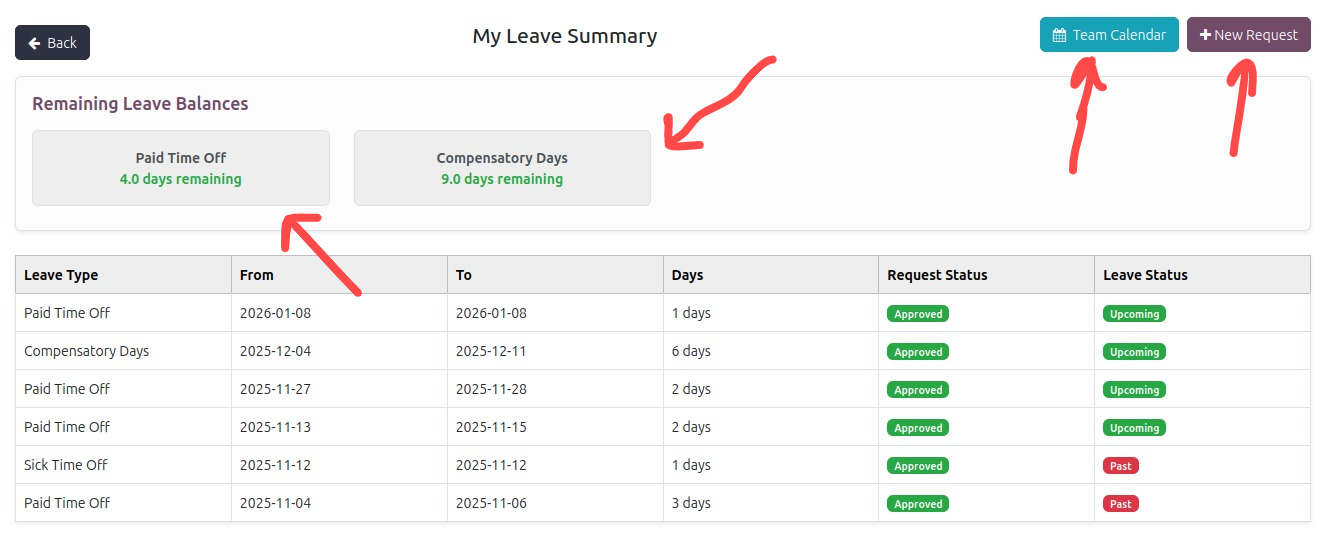
Top right button to Request new Time Off/Leave
By default employee can see past and future leaves if approved
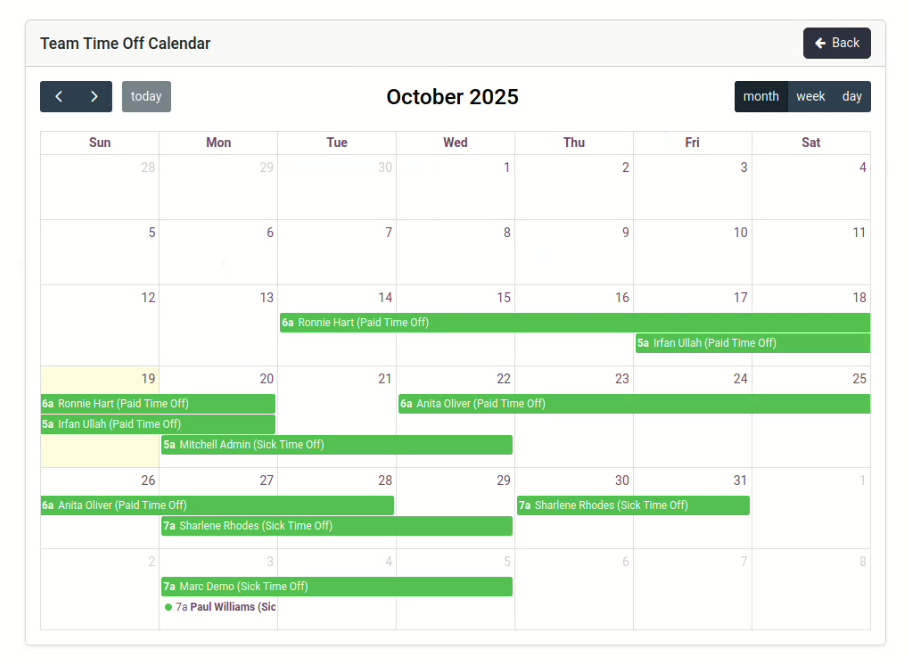
To view Employees leaves click on View Team Calendar
You will see All Employees leaves in Calendar
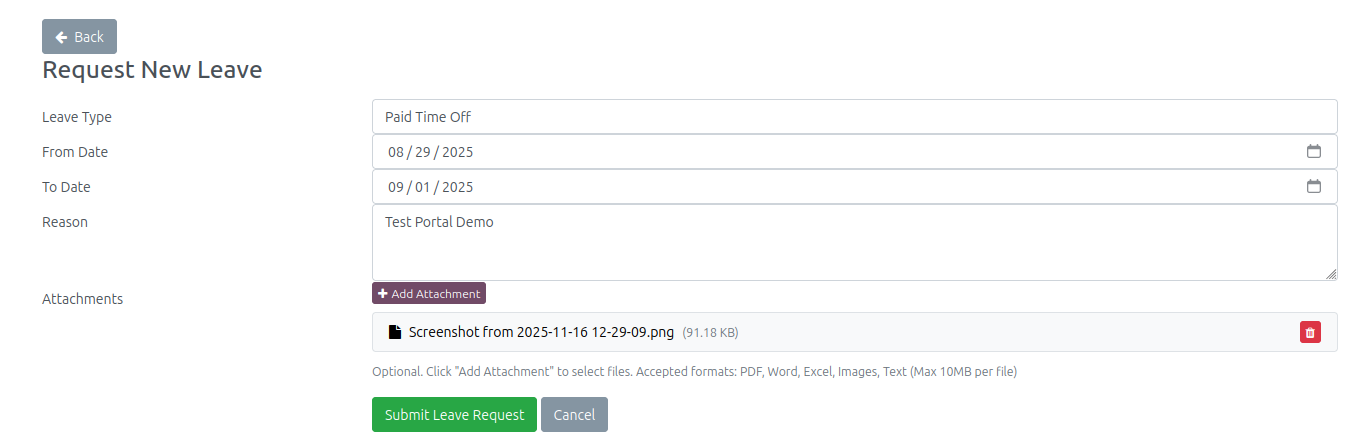
Let's make new request
Enter type and date range then submit
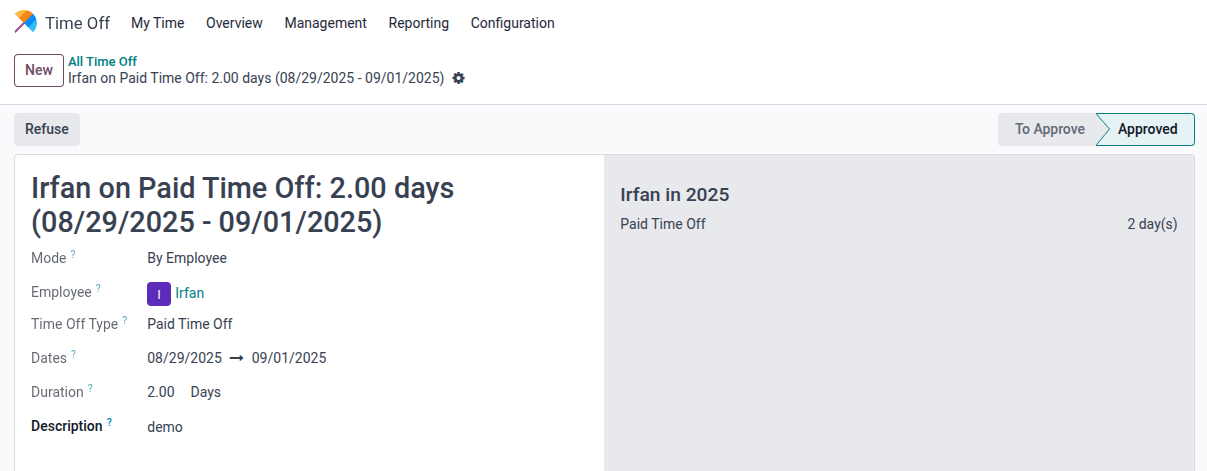
Now in Backend Manager will get the notification
My Time Off / Leaves Portal Workflow Video

Click to watch on YouTube
My Sale Portal Workflow Video

Click to watch on YouTube
Weekly Schedule Portal Workflow Video

Click to watch on YouTube
Expense Portal Workflow Video

Click to watch on YouTube