All Apps
/
Weekly Schedule Portal

Description:
Weekly Schedule/Shift Employee Portal
Works for Both Internal and External/Portal Users
Any User you assigned/give access will have the App/Menu on Portal side
Once you install, you will get the below feature's:
Main Features
Employee can view and request new Shift Schedule
Configuration
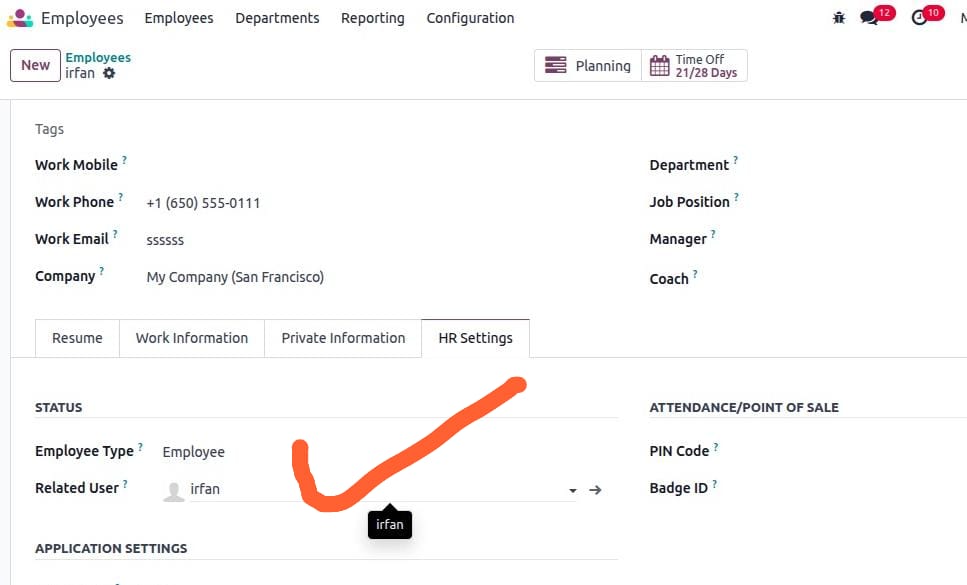
- Make sure the employee is linked with User; check and confirm.
- Go to Employee → open profile → HR Settings tab.
- In the user field, select the User.
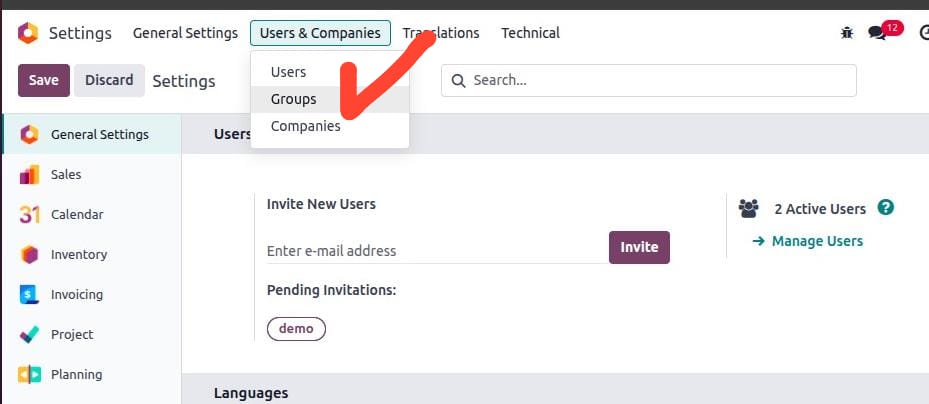
- Next go to Settings → Users & Companies → click on Groups (make sure developer mode is activated).
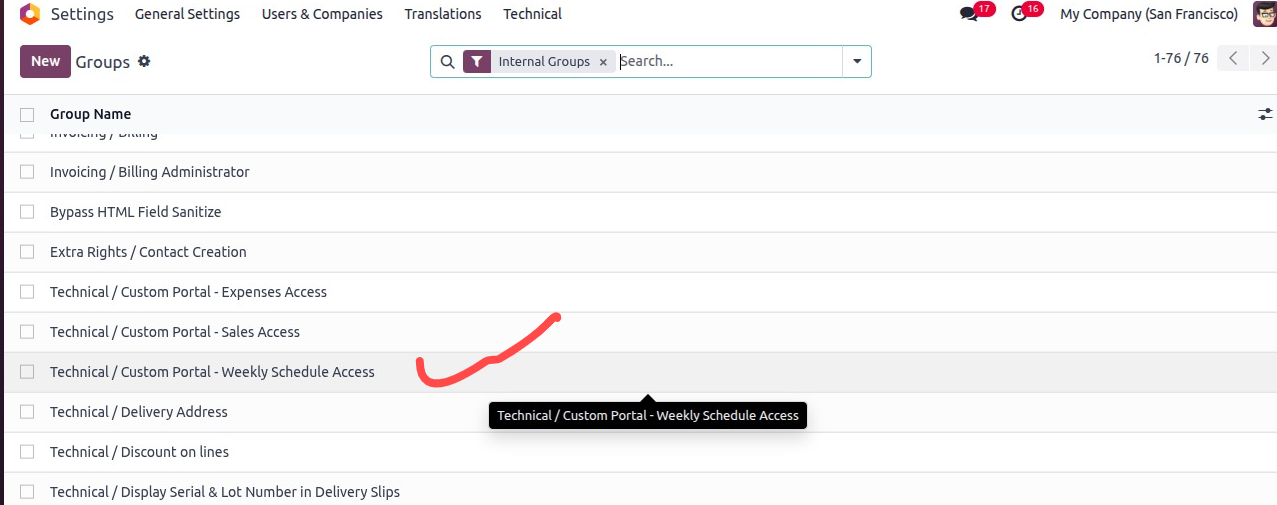
- Search or select the Group ['Custom Portal - Weekly Schedule Access'] and click to open.
Remember only related assigned group menu will be visible to the user.
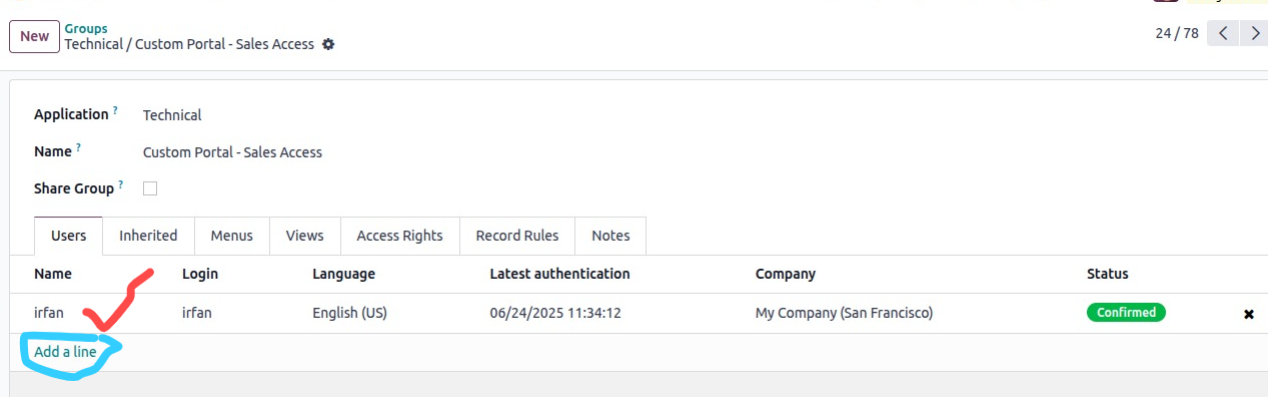
- Add users in the order line.
- Now log in with the User; you will see the menu like below screenshot.
- As I gave access to all groups of different Portal Menus, all menus are showing; You will the Weekly Schedule one.
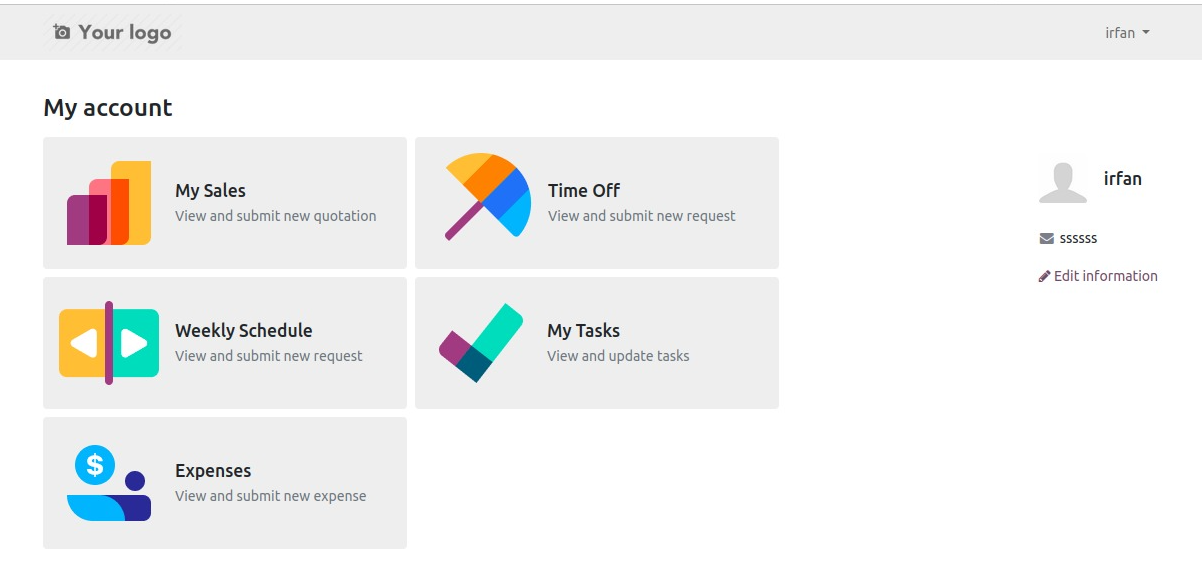
By Click on Weekly Schedules/Planning to open your schedule/shifts
By Click on top right smart button to create/request new weekly shift

Fill the details Date from and To, your role and company then submit
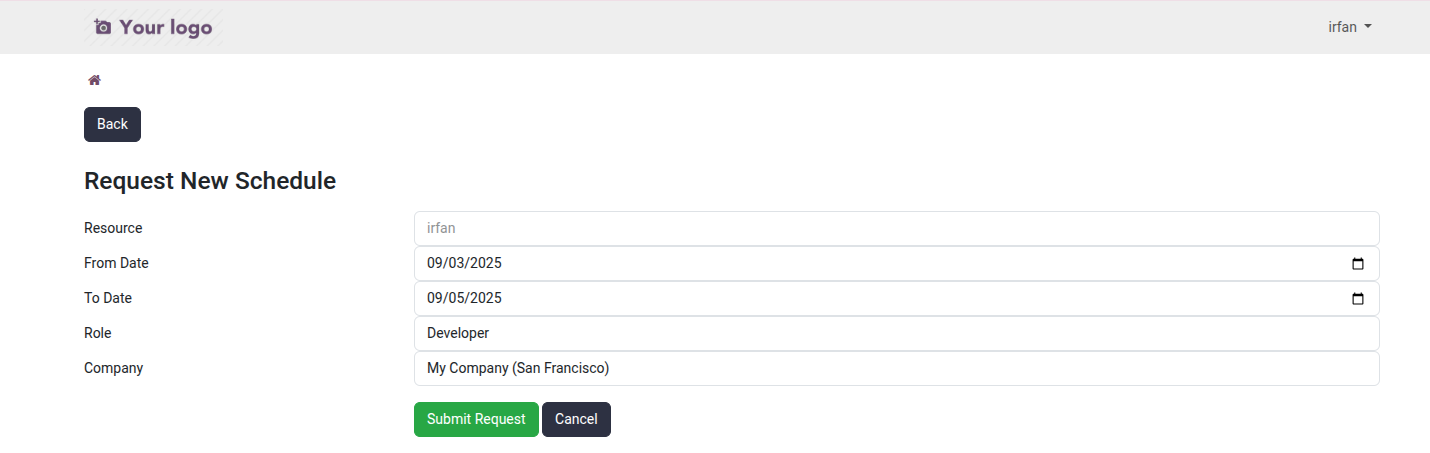
Wait for Approval once approved from the Manager/backend you see you shift details
Waiting for Approval on backend side let's approve
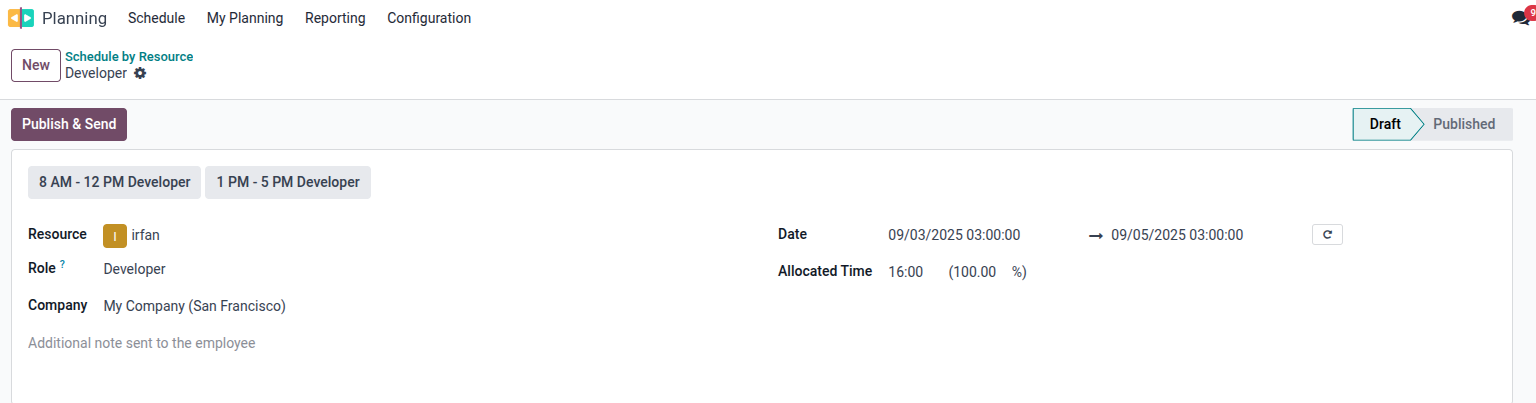
Once approved now employee will receive email and can also see on portal
Shifts/Schedule after Approval on Portal

