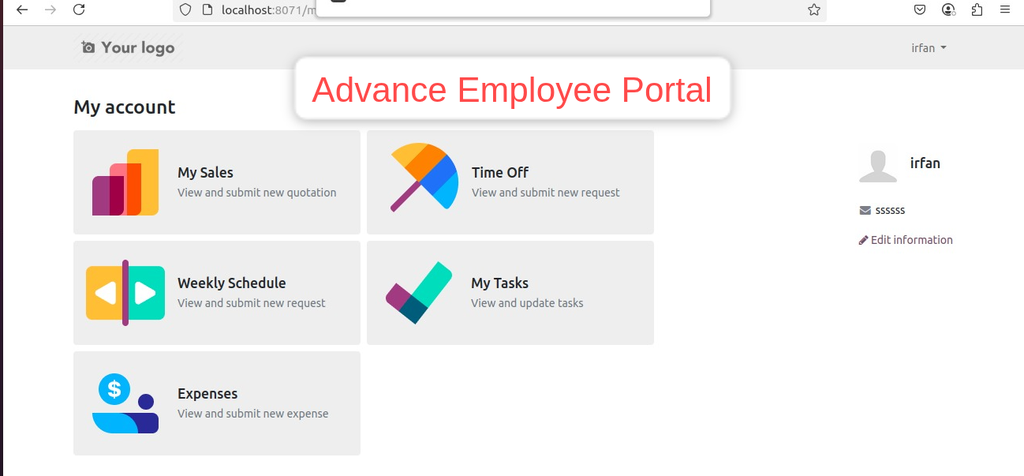
Employee Project Tasks Management Portal
Works on both Community and Enterprise
Works for Both Internal and External/Portal Users
Any User you assigned/give access will have the App/Menu on Portal side
Once installed, you will get the below features:
Main Features
- Employees can view and update their tasks (status, milestone, phase).
Configuration
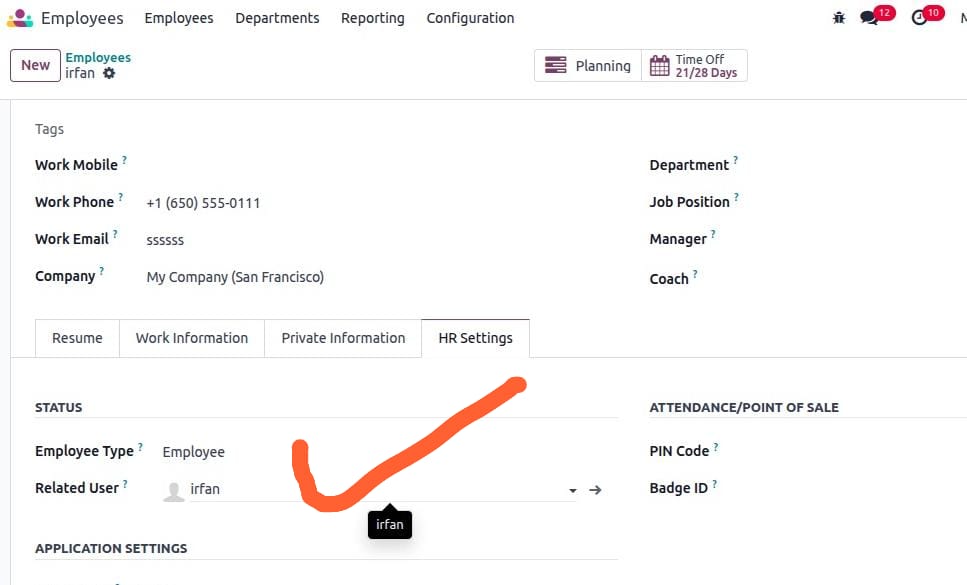
- Make sure the employee is linked with a User.
- Go to Employee → Profile → HR Settings tab → select the User.
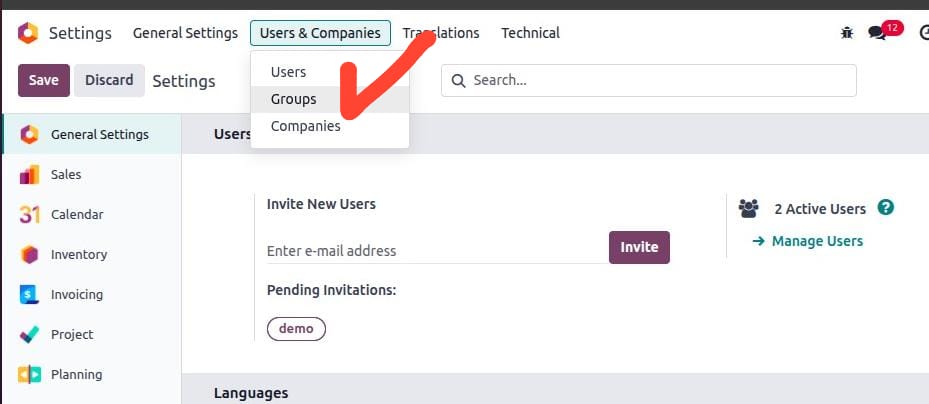
- Go to Settings → Users & Companies → Groups (ensure developer mode is activated).
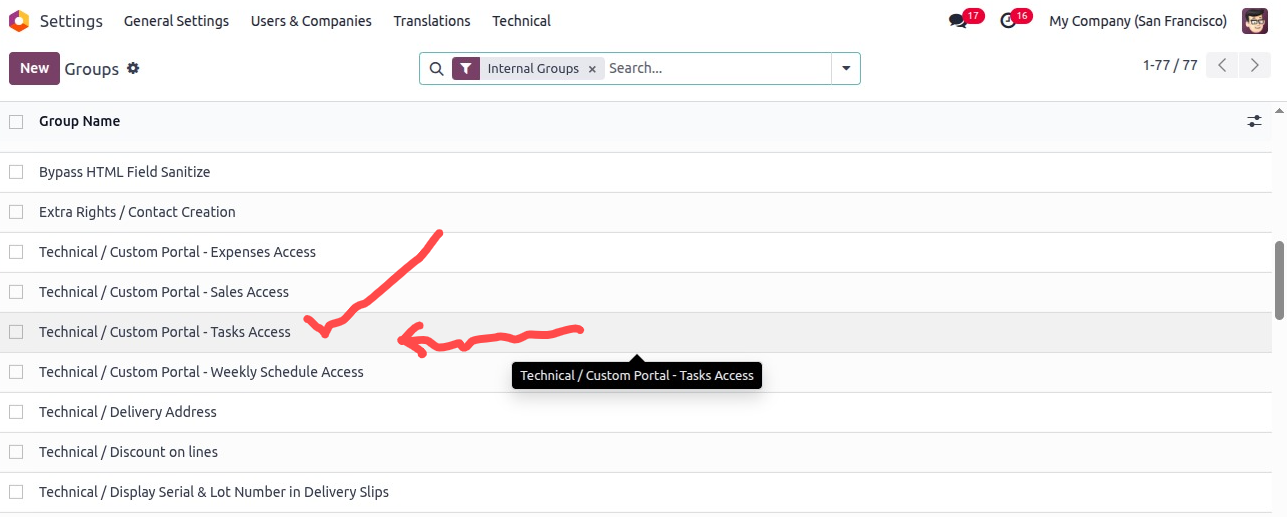
- Select the group Custom Portal - Tasks Access.
Remember: only the assigned group menus will be visible to the user.
- Add Users in the order line.
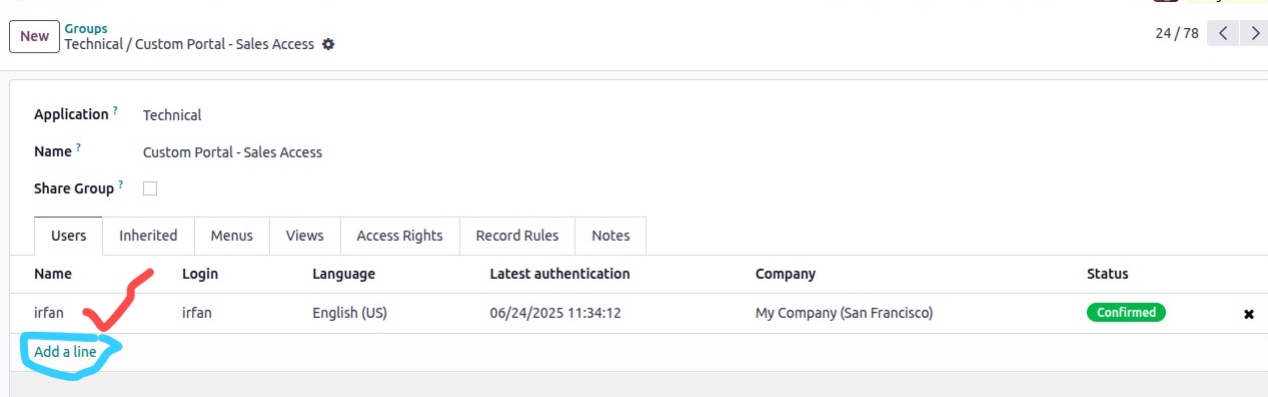
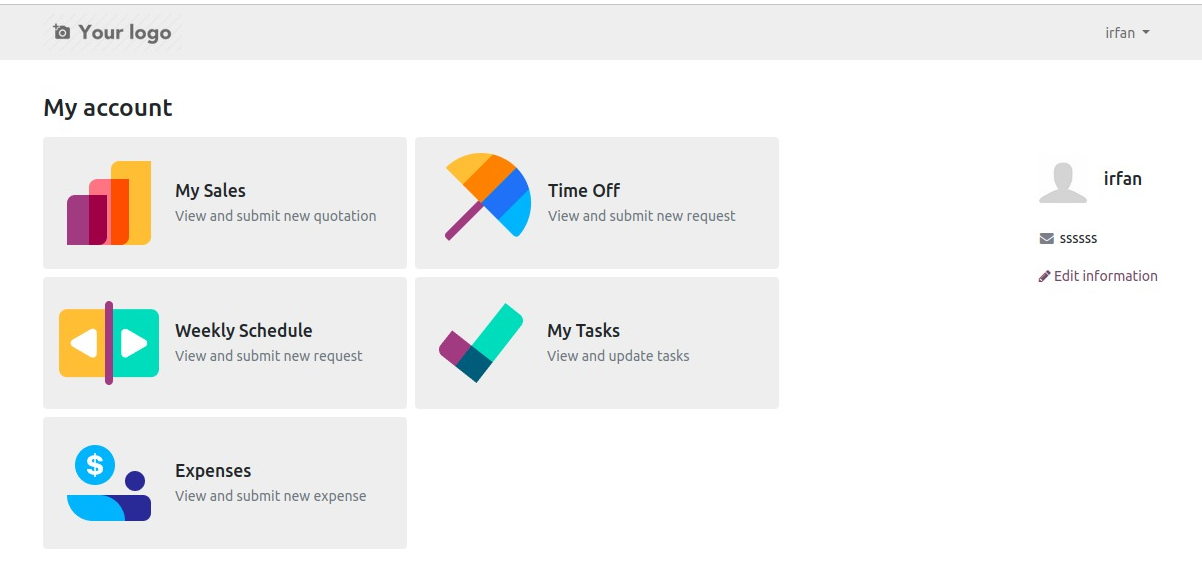
- Now log in with the User – the menu will appear to user we have assigned the group.
- In the below Image I have access to other different Portal Menus as well as
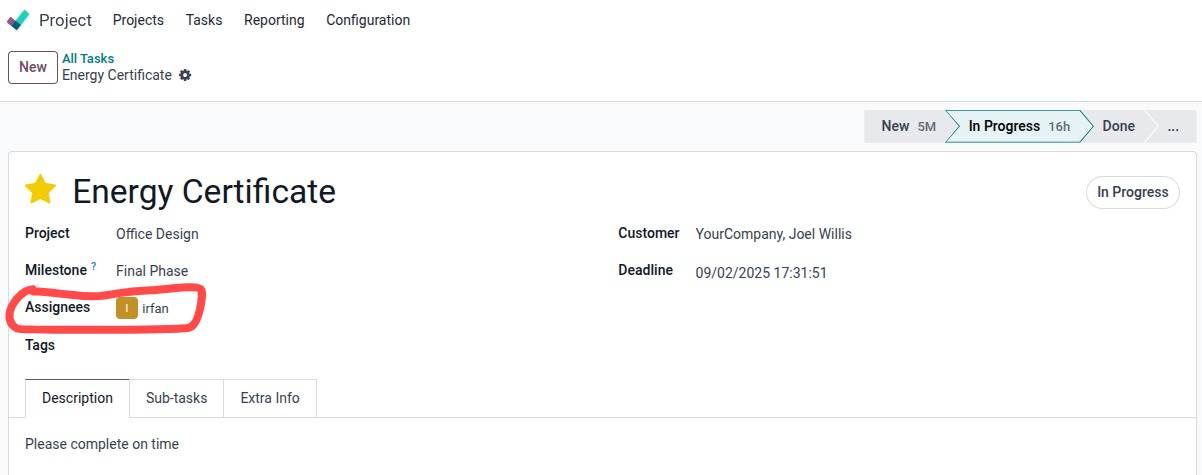
Let's assign task to the employee
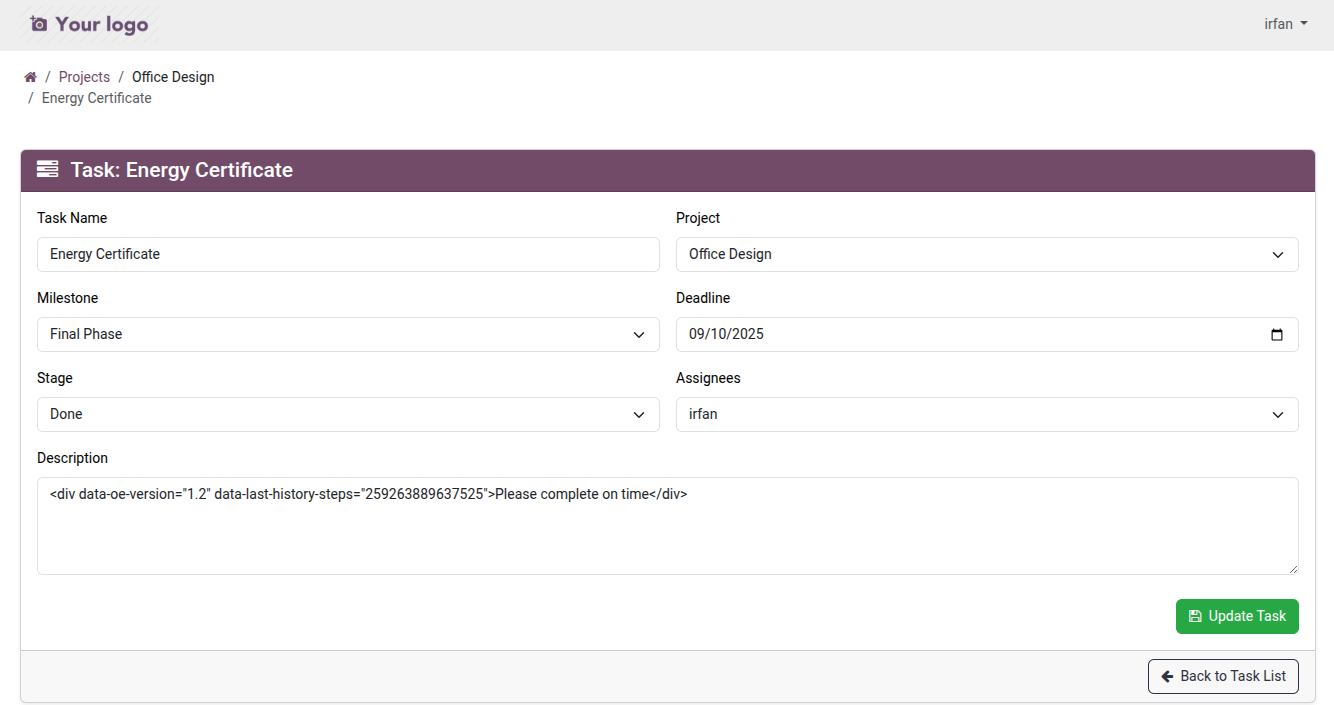
Now employee can see their task with all the details as backend
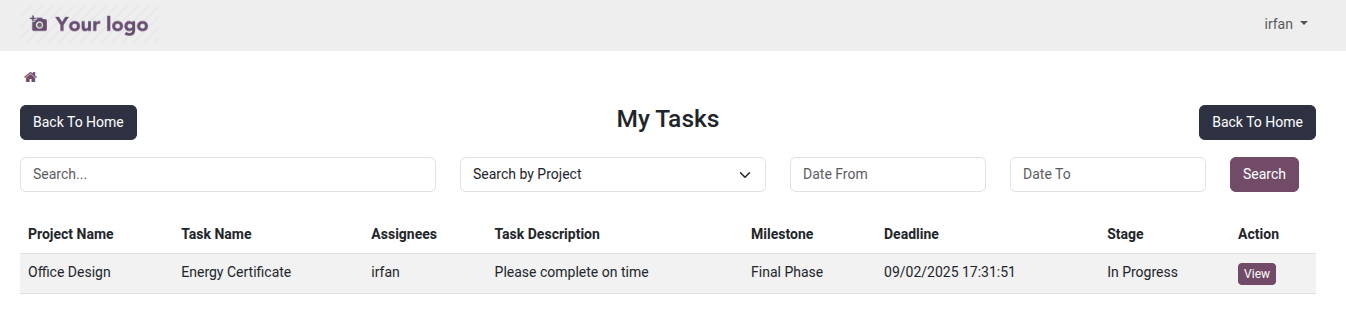
let's click on the view button to view OR update
Update the milestone/stage/date etc and click on Update Task to save OR Back to task list without save
Projects Tasks Portal Workflow Demo Video

Click to watch on YouTube
Specifications
| Version | 15.0, 16.0, 17.0, 18.0, 19.0 |